
How to repair Word document file?
How to repair texts from faulty Microsoft Word documents
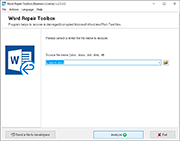
The sequence of actions for repairing texts from an unreadable file in *.doc, *.docx, *.dot, *.dotx, *.rtf formats of any version of Microsoft Word or Rich Text:
- Download, install and open the Word Repair Toolbox: https://www.fix-toolbox.com/download/WordRepairToolboxInstall.exe.
- Select a corrupted Microsoft Word document.
- Click the Analyze button.
- Click the Start Recovery button.
How to repair Word files that are infected by virus?
Word Repair Toolbox helps to restore text from corrupted *.doc, *.docx, *.dot, *.dotx and *.rtf files. Word Repair Toolbox designed for recovering text from damaged Microsoft Word and Rich Text documents.
Main capabilities of the Word doc repair tool include:
- Restore data from Microsoft Office Word 95/98/2000/XP/2003/2007/2010/2013/2016/2019 and RTF documents.
- Repair docx file of Office 2007-2019
- Repair doc file of Office 95-2003
- Repair Word documents with ASCII formatting
- Repair corrupt Word document with Unicode formatting
- Export data to MS Word.
- Save data to disk as a new file.
- Intuitive, easy-to-use interface of .docx repair tool.
- MS Word file repair software works with Windows 98/NT 4.0/2000/Me/XP/Vista/7/8/8.1/10.
Word doc repair tool read and extract text without helps of Microsoft Word. It exclude infection by VBA scripts or viruses.
Requirements: You should have Microsoft Word installed on your computer (though this is not essential)
Note:
- Software cannot recover password protected or encrypted documents.
- The software team development of Word Repair Toolbox do not require donate. This application is not distributed under GNU General Public License (GPL) and similar agreements so it is not open source or free tool. Free version of specified Word Repair Toolbox is available to anyone, without some kind of limitations, get it right now and check the efficiency in your personal case.
System requirements: Windows 98 and above